Short answer: to set the same story points on many issues, use Jira’s bulk change: search for the issues, open More actions (•••), choose Bulk change work items, then Edit work items. To give each issue its own value, Jira’s bulk change will not help. You need a CSV import, one issue at a time, or a table.
Sprint planning usually ends with twenty or thirty issues that each need a number, so this article walks through each way, and when to use it. Jira now calls issues work items; both words mean the same thing here.
Before you start: which field holds your story points#
Jira has more than one story-points field, and editing the wrong one is the most common reason an estimate “doesn’t show up” on the board.
- Company-managed projects usually estimate with the Story Points field.
- Team-managed projects usually estimate with Story point estimate.
A Scrum board reads exactly one field for its badges, its velocity report and its burndown. Set a value in another field and the board ignores it. If you are not sure, check the board’s estimation settings before you edit anything — story points vs. time estimates shows where.
Option 1: the same value on many issues — Jira’s bulk change#
Use this when a batch of issues genuinely shares one estimate: a set of 1-point copy fixes, or clearing the estimate from issues that moved back to the backlog.
- Search for the issues. JQL makes this precise, for example
sprint in openSprints() AND "Story Points" is EMPTY— use the field name your board estimates with. - Select More actions (•••), then Bulk change work items.
- Select the issues, then Next.
- Choose Edit work items, then Next.
- Tick the story points field and enter the value.
- Review the change and select Confirm.
Atlassian’s guide has the details. Three limits are worth knowing first:
- Permissions. You need the Make bulk changes global permission and permission to edit the issues. Without the global permission, the option simply does not appear.
- 1,000 issues at a time. Larger sets need several passes.
- No undo. The way back is another bulk change, so note the old values first.
What bulk change cannot do is give each issue its own value. That is the actual job of estimation, so for a sprint it covers only the easy part.
Option 2: a different value on each issue — one at a time#
The backlog and the issue view let you edit the estimate of the issue in front of you. It works, and it is how most teams estimate, but it scales badly:
- every issue is an open, read, type, close cycle;
- you lose sight of the other issues, so it is hard to keep sizes consistent (“is this bigger than the one we called a 5?”);
- you do not see the sprint total until you are done;
- every number is written to Jira immediately, so a half-finished planning session leaves half-estimated issues on the board.
Option 3: different values from a spreadsheet — CSV import#
If the numbers already exist in a spreadsheet, a Jira administrator can update existing issues with a CSV import: map a column to the work item key, and a row whose key exists updates that issue. That sets a different value per issue in one go.
It is an admin tool, though, and it writes straight to Jira. A key that is not in the project you selected creates a new issue instead, so try it on a test project first. It suits a one-off migration better than a regular planning meeting.
Option 4: the whole sprint in one table#
Scope Planner is a Jira Cloud app that loads a sprint, a backlog or any JQL into one editable table, so you estimate every issue where you can see all of them. It is on the Atlassian Marketplace, with a free trial.
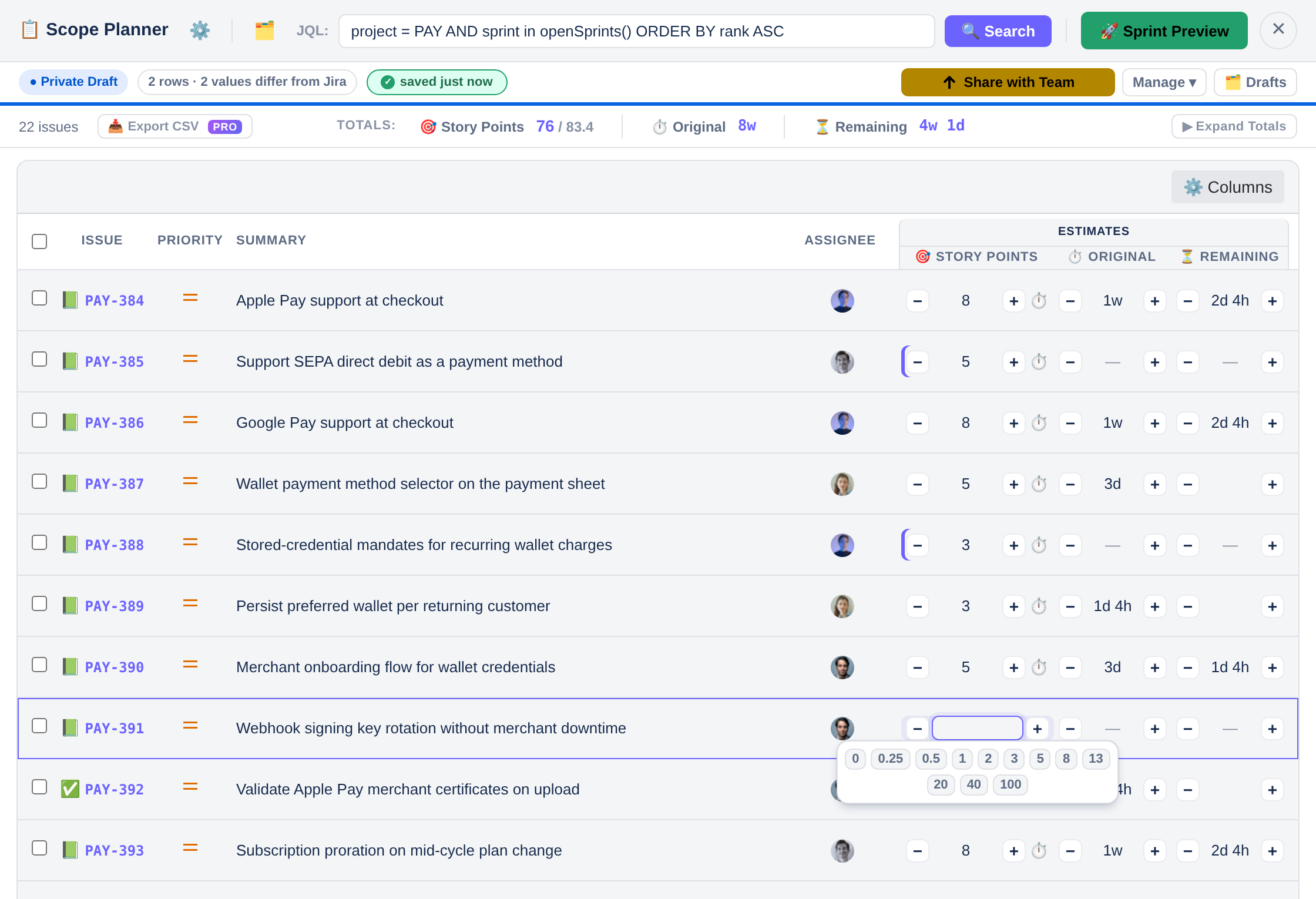
- Different values, inline. Click a story-points cell and pick from your scale — Fibonacci, Modified Fibonacci, Powers of 2, Linear or T-shirt sizes — or type a number. Original and remaining time sit in the same row.
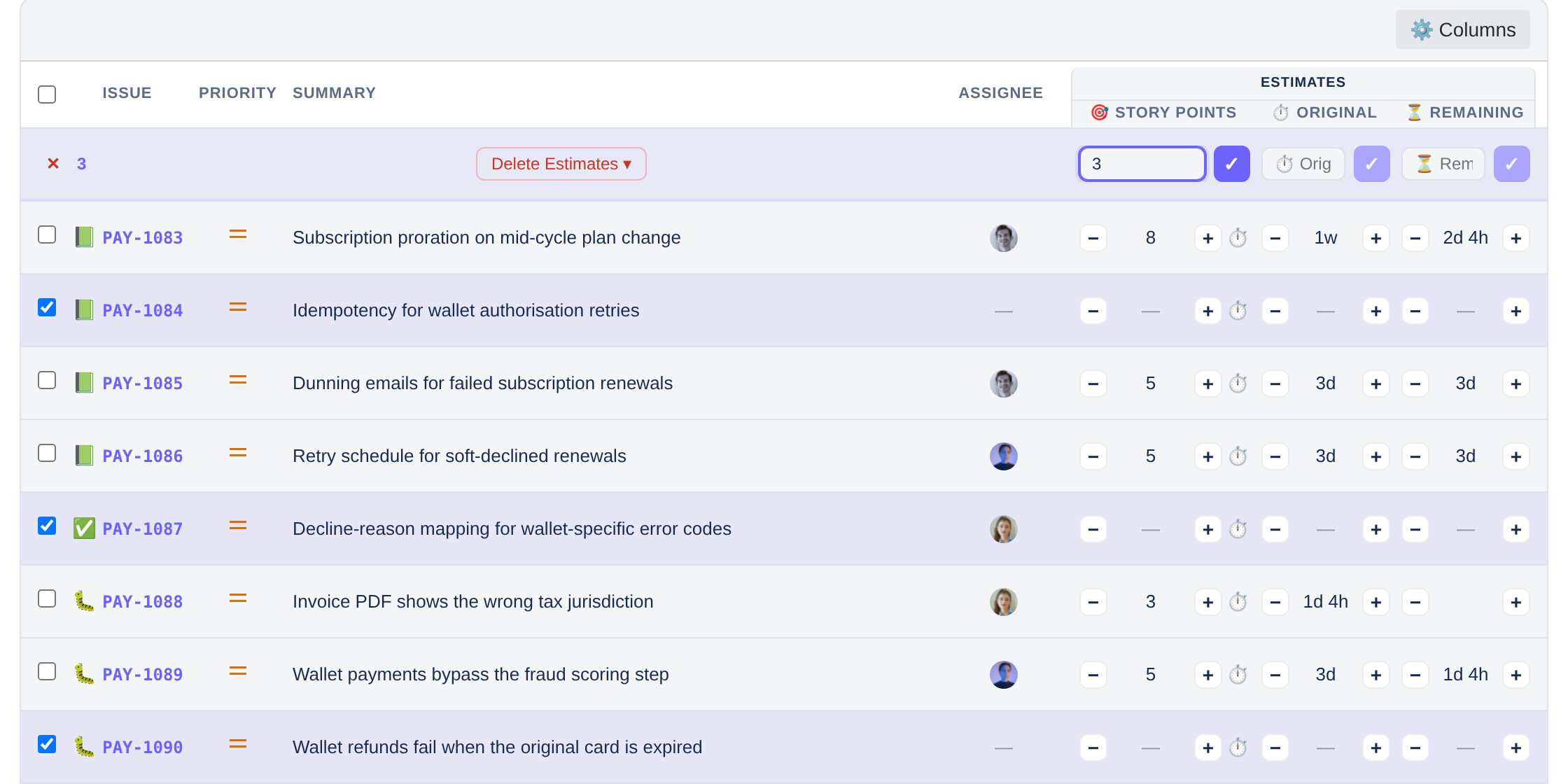
- The same value, in bulk. Tick several rows and the bulk bar applies one value to all of them, or clears a batch, after a confirmation. See Bulk actions in the user guide.
- Totals as you go. The sprint total updates with every edit and breaks down by epic, assignee, label or type, so you can check it against your sprint velocity.
- Nothing reaches Jira until you decide. Every edit lands in a private draft. You can share it with the team, and Sprint Preview shows exactly what would change, issue by issue, before anything is written.
Estimating, drafts, totals and Sprint Preview are free. Publishing the estimates to Jira in one pass is a Pro feature, alongside per-assignee workload, estimation history, auto-calculated velocity and CSV export — see Free and Pro.
Which one to use#
| You want to… | Use |
|---|---|
| Give many issues the same number, or clear them | Jira’s bulk change, or Scope Planner’s bulk bar |
| Estimate one issue you are already looking at | The issue view |
| Load values that already exist in a spreadsheet | CSV import, by an administrator |
| Estimate a whole sprint or backlog, compare sizes and watch the total | A table: Scope Planner |
| Agree on the numbers before Jira changes | Scope Planner’s drafts and Sprint Preview |
Whichever way you choose, check the board’s estimation field first. It decides whether the numbers you type ever reach the board.
Frequently asked questions#
Can you bulk edit story points in Jira?#
Yes, to one shared value. Use Bulk change work items from a search and edit the story points field. Giving each issue a different value needs a CSV import, one-at-a-time edits, or an app.
Why can’t I see the bulk change option?#
Bulk change needs the Make bulk changes global permission, and without it the option does not appear. Ask a Jira administrator to grant it.
Why is the story points field missing from bulk change?#
Bulk change offers a field only when every selected issue has it, and you need permission to edit
them. Sub-tasks are the usual cause: when we added one sub-task to a selection of stories, Story
Points dropped off Jira’s list of bulk-editable fields. Narrow the search to one issue type, for
example with issuetype = Story.
How many issues can I bulk edit at once?#
Up to 1,000 at a time in Jira Cloud.
Can I undo a bulk change in Jira?#
No. To reverse one, run another bulk change with the old value, which is why it is worth noting the values first. In Scope Planner edits stay in a draft until you publish, so undoing one means clearing the cell.